
Aion 2 · Guides
Aion 2 system requirements and best settings for performance
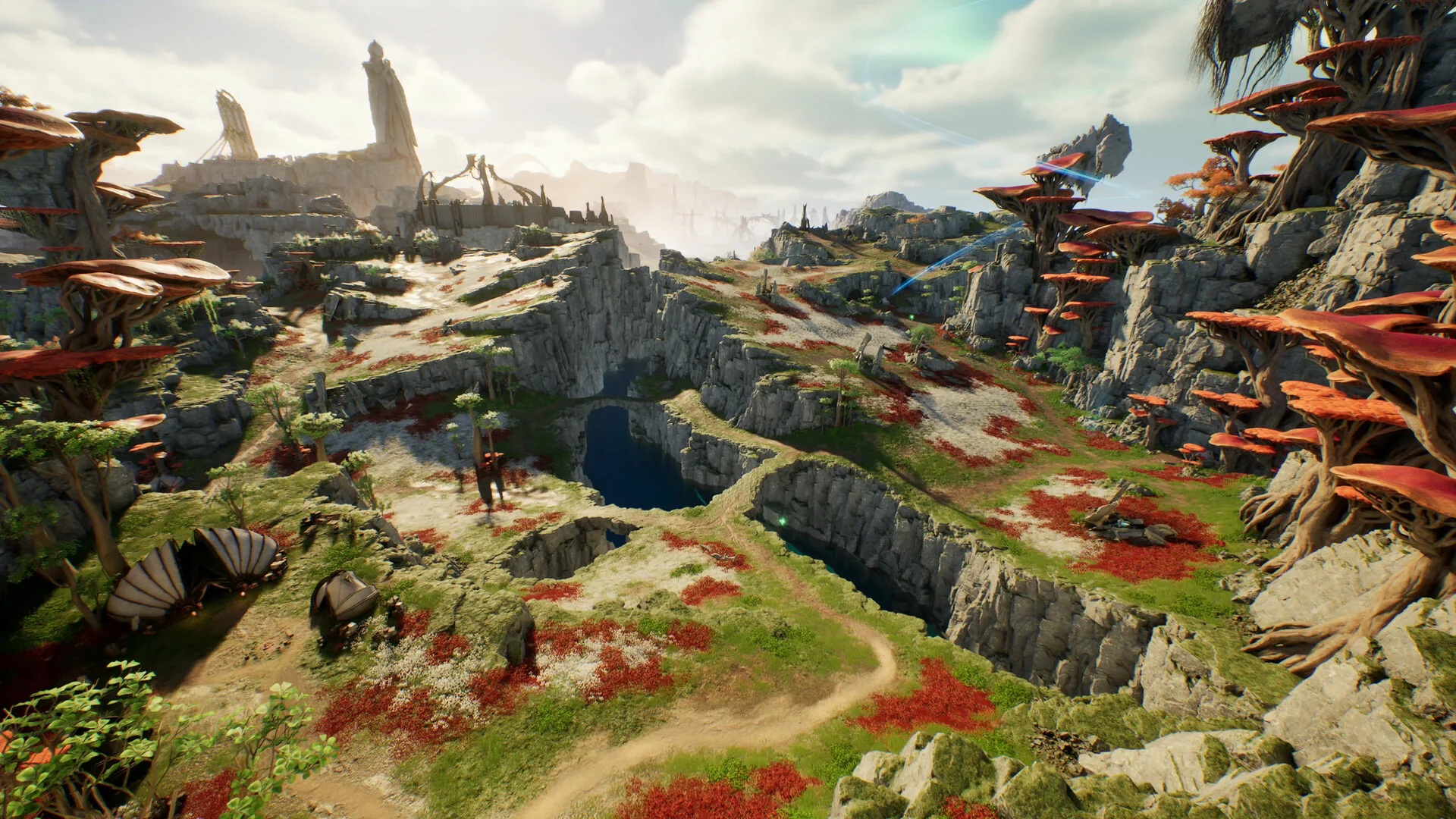
NCSOFT / AION 2 official Steam screenshots
TL;DR
- Minimum: Windows 10 or 11 (64-bit), Ryzen 5 2600 or Core i5-10500, 8 GB RAM and a GTX 1050 Ti (4 GB).
- Recommended: Ryzen 7 3700X or Core i7-11700, 16 GB RAM and an RTX 2070 (8 GB).
- Both need DirectX 12 and 100 GB of storage. An SSD is recommended.
- At 1080p, NC says to use the Very Low preset on minimum hardware and Low on recommended hardware.
- For big fights, turn on Identical Player Appearance and lower Mass Combat Quality and Player Particle Effect Display.
The specs below are copied from the Steam store page as of 4 October 2026. NC supports Windows PC only; see the install guide for Linux, Steam Deck and controller support.
Minimum and recommended specs
| Spec | Minimum | Recommended |
|---|---|---|
| OS | Windows 10/11 (64-bit) | Windows 10/11 (64-bit) |
| Processor | AMD Ryzen 5 2600 / Intel Core i5-10500 | AMD Ryzen 7 3700X / Intel Core i7-11700 |
| Memory | 8 GB RAM | 16 GB RAM |
| Graphics | NVIDIA GTX 1050 Ti (4 GB) | NVIDIA RTX 2070 (8 GB) |
| DirectX | Version 12 | Version 12 |
| Network | Broadband internet connection | Broadband internet connection |
| Storage | 100 GB available space | 100 GB available space |
| Notes | SSD recommended. At FHD resolution, set the graphics preset to Very Low | SSD recommended. At FHD resolution, set the graphics preset to Low |
Both columns need a 64-bit processor and operating system. Read the notes row carefully: NC pairs the recommended PC with the Low preset at 1080p, not High. It does not publish a spec for the higher presets.
Graphics settings that matter
The settings below are named as they appear in the game's Graphics tab, with what the in-game descriptions say they do.
Quick Settings sets every option at once: Very Low, Low, Normal, High or Very High. Pick Custom to change single options.
Upscaler renders the 3D scene at a lower resolution than your screen and scales it up. The game offers four:
| Upscaler | What the game says |
|---|---|
| TAA | Basic anti-aliasing with a low performance cost |
| TSR | Unreal Engine's upscaler, with balanced performance |
| DLSS | NVIDIA's AI upscaling, on supported GPUs |
| FSR | AMD's upscaler, which works across a wide range of hardware |
With DLSS or FSR you can set Quality from High Performance to Quality and turn on Frame Generator, which inserts generated frames between real ones. DLSS Frame Generator needs an NVIDIA RTX 40 series card or newer, and on Windows 10 it needs extra setup and a restart. Frame Generator changes apply the next time you start the game.
NVIDIA Reflex (Off, On or Boost) lowers input latency on NVIDIA cards.
Vertical Sync prevents screen tearing. The Screen Refresh Rate option only works while Vertical Sync is on.
Settings for crowds and the Abyss
Large fights are where frame rates drop. Three options target them directly:
| Setting | What it does |
|---|---|
| Identical Player Appearance | Shows other players with the same look in some maps, such as the Abyss. You, your party and your force keep your own. The game says this greatly improves performance in large-scale battles |
| Mass Combat Quality | Sets how many characters are drawn on screen at once |
| Player Particle Effect Display | Limits skill effects to Everyone, Self and Party, or Self Only |
Display Network Status shows your ping as a number and your party's as Fast, Normal, Slow or Very Slow. It helps when you need to tell lag from low frame rate.
Combat settings to change first
These are gameplay options, not performance, but NoBS Game Guides suggests changing them before you start:
Creator tip
Auto Target Upon Skill Use. This is extremely important option, idk why it is off by default.
| Menu | Setting | Set to | Why |
|---|---|---|---|
| Combat, Controls | Pursue Targets with Skill Activation | On | Your character walks into range |
| Combat, Controls | Auto Target Upon Skill Use | On | You always have a target in a busy fight |
| Combat, Target Scanning | Search direction and priority | Front of the camera; hostile players first, then players attacking you | NoBS's setup |
| Combat, Auto-use | Buff Auto-use Conditions | In combat | Scrolls only fire while you are fighting |
| Info Display, Combat | Display Boss Orientation Indicator | All | Shows which way a boss faces, to dodge frontal attacks and find its back |
| Key settings | Separate Defiance Hotkey | On | Defiance, which breaks stuns, shares Space with jump, so a panic press can make you jump and open your wings |
Next steps
Sources
Related articles
- Aion 2 Abyss guide: Reshanta, Abyss Points and Artifact Sieges
How the Aion 2 Abyss works on global: entering Chaotic Lower Reshanta, the weekly time limit, earning Abyss Points, Artifact Sieges and the Abyss Corridor, and what to buy with your points.
- Aion 2 achievements and titles: which titles to equip
How Aion 2 titles work: owned and equipped effects, the three equipped titles, how achievements award them, and the titles creators chase for PvE.
- Aion 2 alts: do you need them, and how to level them
Do you need alts in Aion 2? What an extra character adds, which limits are per character and which are shared across your server, how alts send Kina to your main, and how to level one quickly.